St Veronica's R.C. Primary School
Tips when using our Calendar
Using our Calendar on your desktop browser
Overview
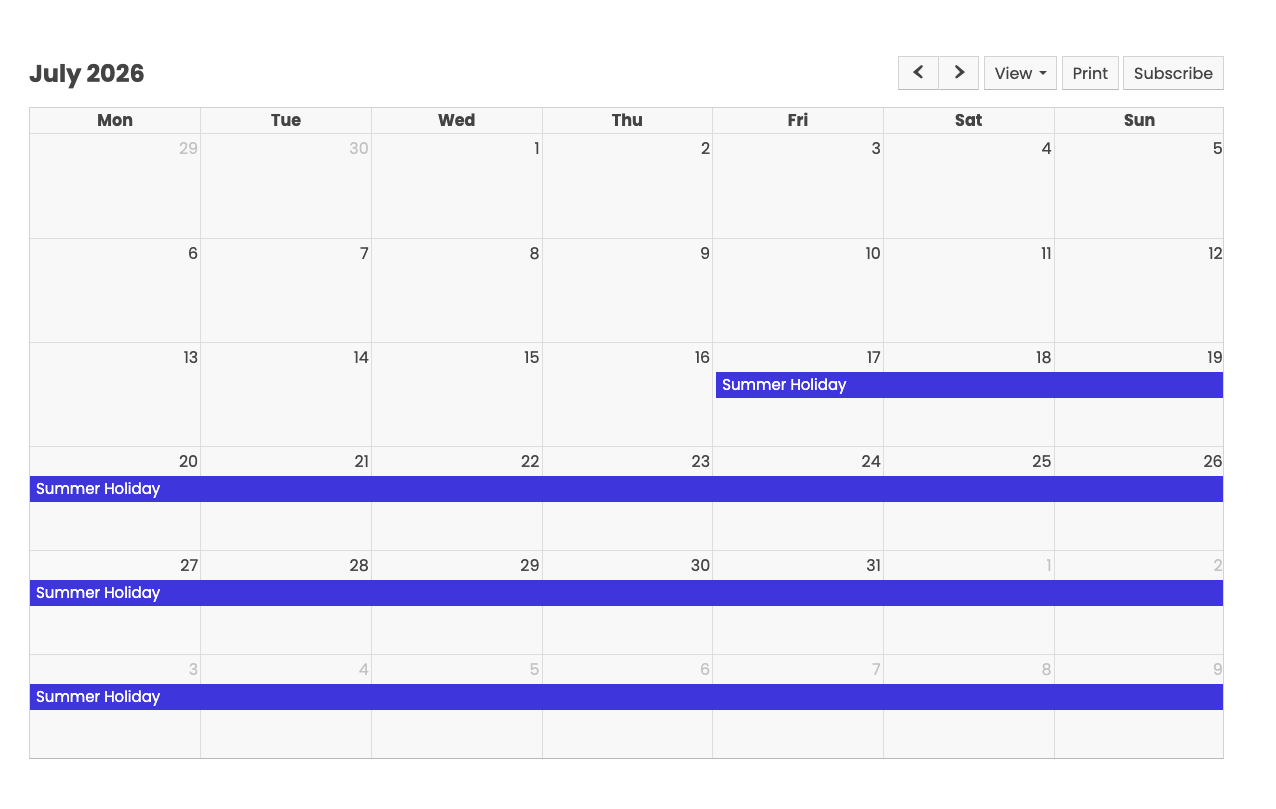 Like a calendar you hang on the wall, this calendar provides a simple way to see key dates and times of interest during the school year.
At the top right you will see a list of navigation options.
Left and Right navigate through the months (if in Month view), through the days (if in Day view) or weeks (if in Week view.)
Drop down the View menu to choose the view which suits you. The calendar will always open on 'Today.'
Hovering over an item will display extra details, and clicking into an item will reveal further details, such as times, if relevant.
Subscribing Overview
The idea of subscribing to our calendar is to make it available within a calendar app or service you already use. Your smartphone, tablet, or Microsoft Outlook on your desktop (if you happen to use it) all have calendars which you may already use to keep a track of what is going on in your day-to-day. Subscribing adds our school events to your calendar so they appear alongside it, all in one place. Further, you can colour, show or hide our events when you don't need to see them. It is smart and not particularly difficult to set up.
 Once set up, your device of choice stays in-sync with school, so you have everything that is going on at your fingertips, always updated and always correct. Subscribing is easy.
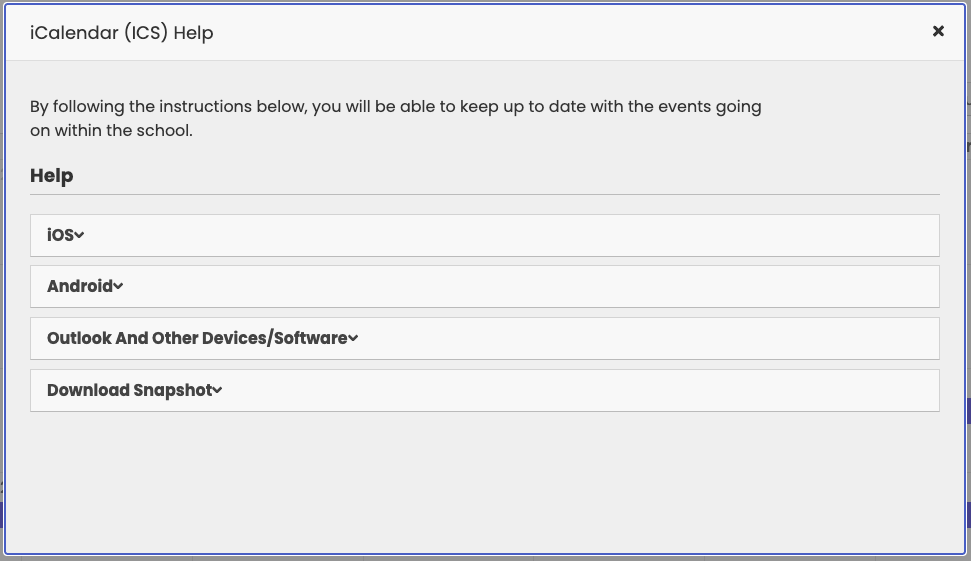
At the top right of the calendar there is a Subscribe button. This is visible when browsing via the desktop or via your smart device. You will see the pop-up like so:
Simply choose your device type and follow the on screen instructions.
Create a desktop shortcut
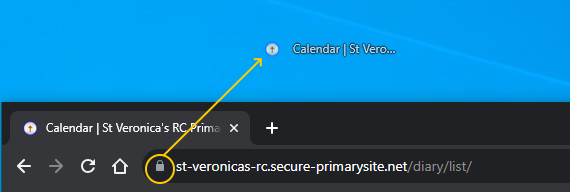 Most desktop browsers have the functionality to save a shortcut to your desktop. All you need to do is browse to the calendar, click and drag the icon to the left of the address to your desktop. (In Chrome it is a Padlock, in other browsers it may be our logo.) Now, our Calendar is literally a click away.
Using our Calendar on your smartphone or tablet
Overview
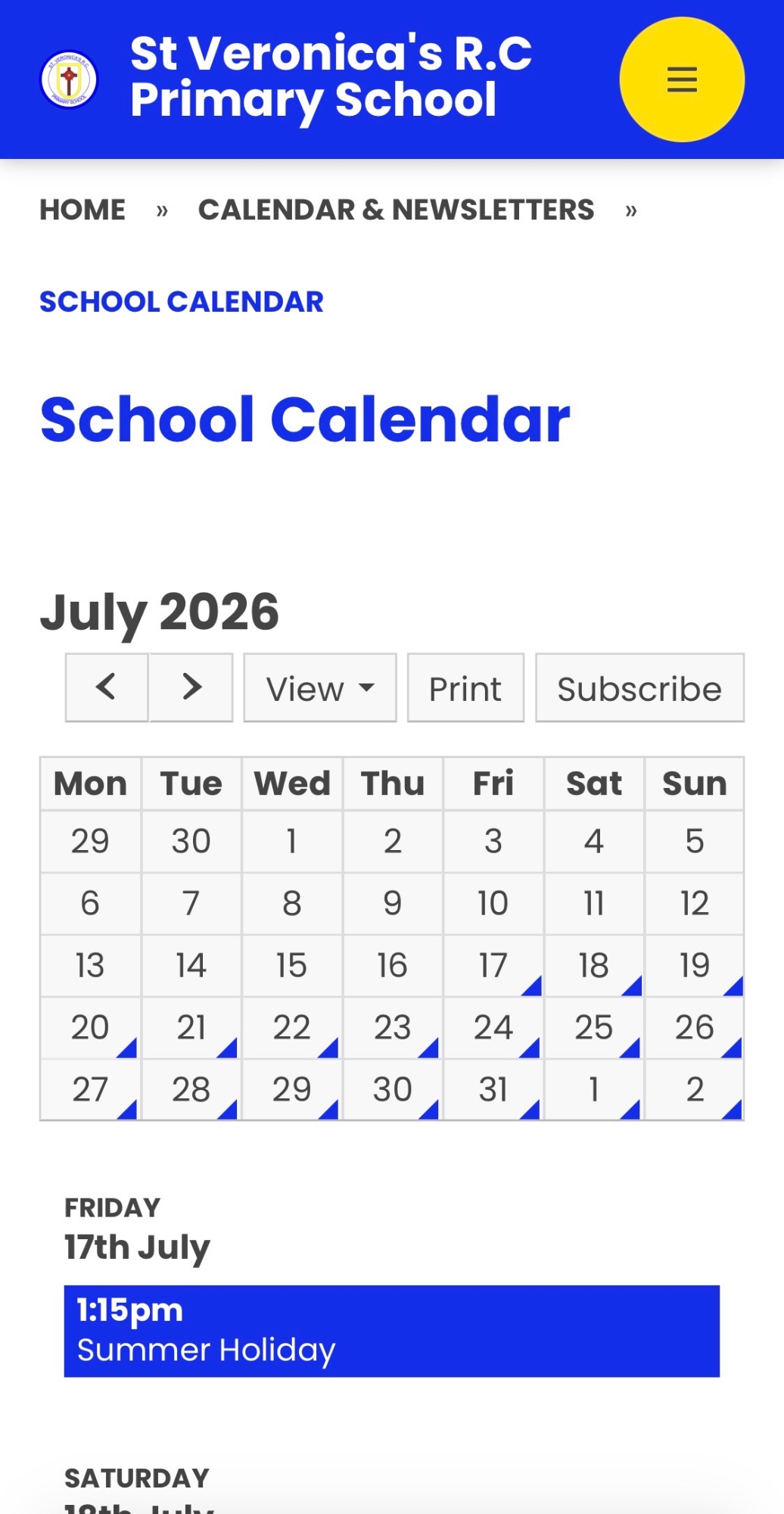 On a smartphone or tablet, the same views and functionality are available, however they are slimmed down to accommodate the width available on your device.
Click on a day to see that day's items with details.
Adding a shortcut to your home screen
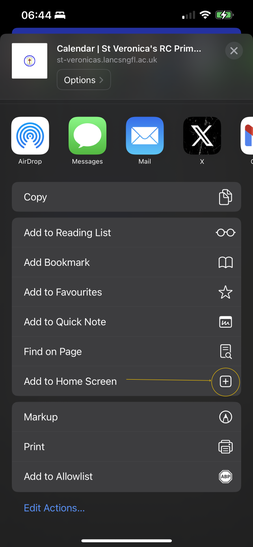
A shortcut on your home screen simplifies access and is quite simple to do. The demonstration is on an iPhone, but the principles are the same on Android.
You need to find the 'Share' button which is usually a square box with an arrow. In Safari this is at the bottom of the screen, but on Chrome it is at the top right.
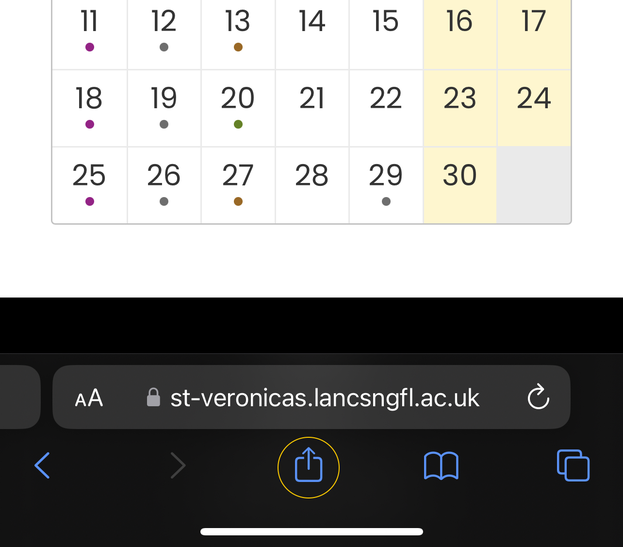 And in the menu that pops up, press 'Add to Home Screen.'
You'll then get an option to name the calendar. Something simple like 'School Calendar' will do the trick.